icon.
icon.
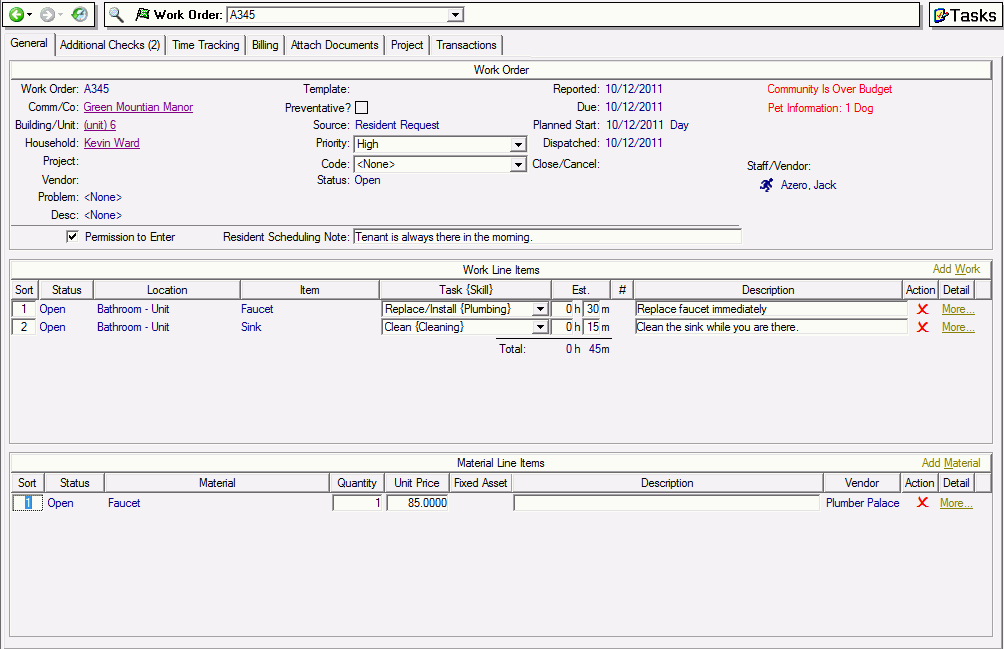
All work orders have at least one line item, which represents the initial task to be performed. You can add additional line items when there is more than one task required to complete a work order, when you must track required materials, or to include additional checks.
Note
There are certain common scenarios for which MRI Software recommends creating two separate work orders, such as the following:
▪ If there are two significant tasks to be completed simultaneously.
▪ If two employees are involved with significant time tracking or different expected time commitments.
▪ If materials are provided in conjunction with the work to be performed, then it is included on the same work order. If the materials are to be delivered on a different date than the work is to be performed, they should be on a different work order.
When a work order is selected in context, you can view the details of that work order. From this tab, you can also maintain the selected work order.
You can print the work order by clicking the printer icon.
Click the image for more information. A list of available tasks is provided below.
.